“Where is my order right now?” A simple question that somehow takes five minutes to answer. The information hasn’t disappeared — it’s just scattered: the date in one place, stock in another, payment in a third. In an accounting system a customer order is a document of its own, and its whole path from the phone call to the shipment is visible on one screen.
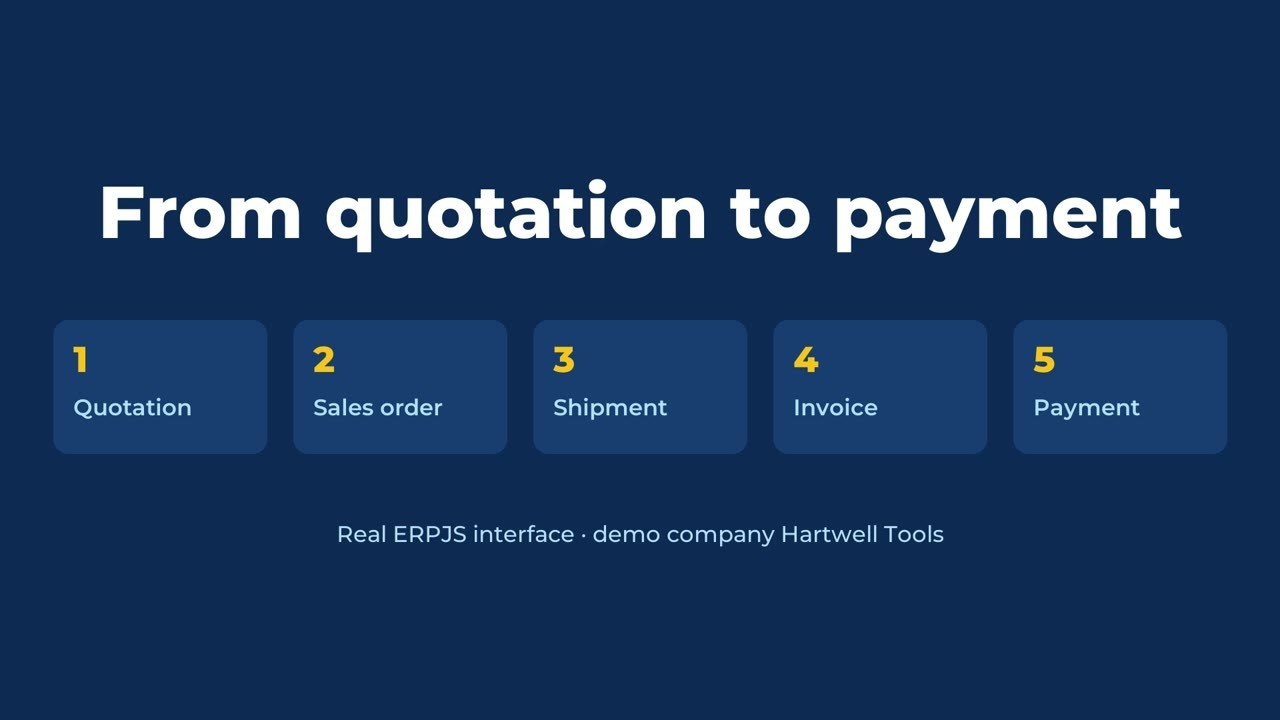
Why can’t a manager answer straight away?
Because the answer has to be assembled from three different places. The manager tries to remember: ordered on Monday, part of it shipped, something else was still on the way. Check the notebook, then the spreadsheet, then scroll back through the chat. By the time you’ve put it together, the customer is still waiting on the line.
But that’s not the worst part. The worst part is the order nobody remembered. It didn’t get lost — nobody opened it for three weeks.
What is a customer order in an accounting system?
It’s a document of its own, not a line in a notebook: the customer, the date, what they’re buying, how much, at what price, and when you promised to ship. More on how order management software works — on a separate page.
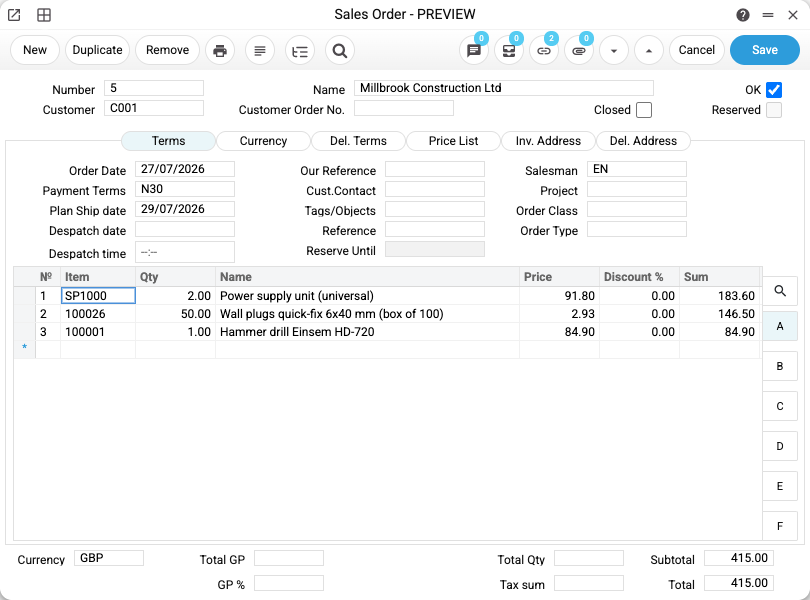
Everything that follows — the shipment, the invoice, the payment — is created from it. Not retyped: the system keeps track of what came from what. That matters for the last section.
How do you spot the orders that are stuck?
The most useful screen isn’t the order card, it’s the list. Each row starts with a few icons: a cart for the shipment, a document for invoices, a truck for the carrier’s waybill, a currency sign for payment.
The colour needs no legend: grey means nothing happened, orange means partly done, green means fully closed.
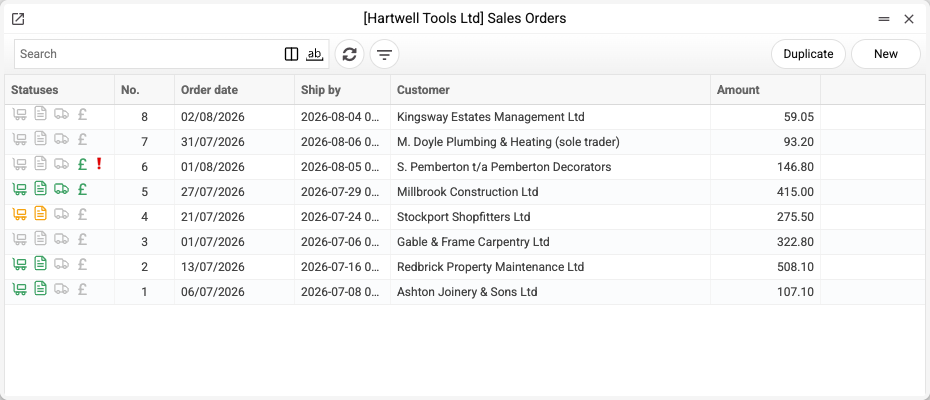
Green in the rows around it — and then one row that is entirely grey: an order for £322.80, promised for 6 July, with no movement since. Not lost. Just never opened.
You choose the columns yourself — which fields, in what order, how wide. Someone needs the promised shipping date, someone else the salesperson or the warehouse. It’s a per-user setting, not a layout everyone has to share.
How do you see exactly what didn’t go out?
When you need the detail, there’s a dedicated order report. It shows every line: how much was ordered, how much shipped, how much invoiced.
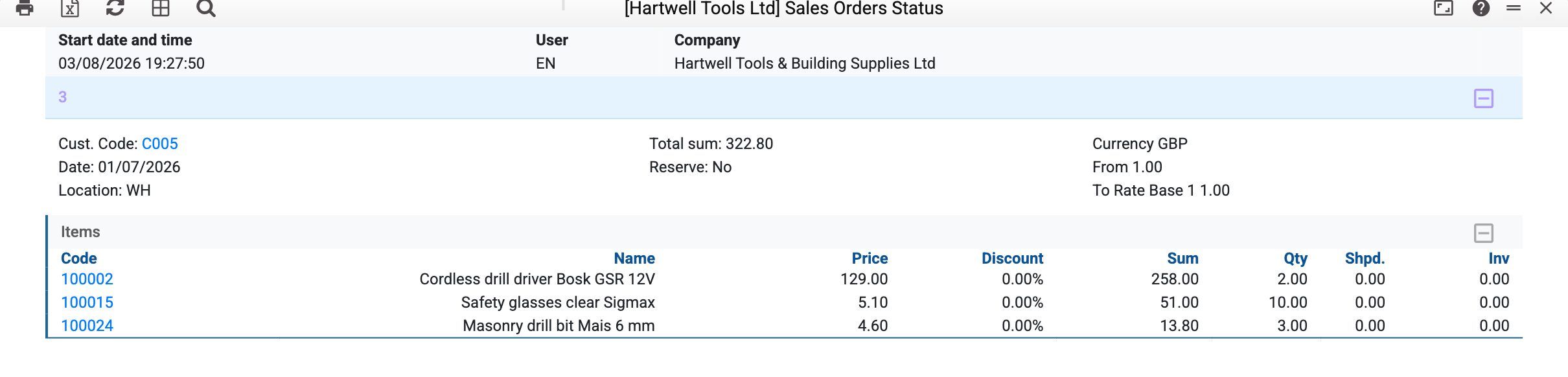
The same order: a cordless drill driver — 2 pcs, safety glasses — 10, a masonry drill bit — 3. Shipped: zero. Invoiced: zero.
And before you run it, you tick what to include: outstanding debt, not shipped, not invoiced. So the “show me what’s stuck” view is something you assemble, not something you hunt for by eye. The same principle applies to stock accounting.
How do you see the whole history of an order?
Every document has a button that shows what it’s linked to — the document tree.
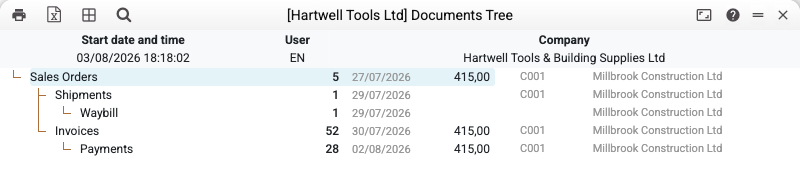
The order for £415.00, and underneath it everything that grew out of it: the shipment, the carrier’s waybill under the shipment, the invoice next to it, and the payment for the same amount under the invoice. The dates run in sequence — ordered on 27 July, shipped on the 29th, invoiced on the 30th, paid on 2 August. The cycle is visibly closed, and you can see it without running a single report. From the same tree you can jump into any of those documents.
When a customer asks “did you send the invoice?”, the answer takes seconds.
What does this actually give you?
Three things, and none of them is about “modern technology”.
Orders stop falling through the cracks. Not because the system nags you, but because you can look at all of them at once and see where nothing is moving.
Your manager answers on the spot — not “let me check and call you back”, but the actual state: part shipped, the rest on this date.
You can see where the money is stuck. Shipped but never invoiced — visible. Invoiced but never paid — visible too.
Frequently asked questions
How is a customer order different from an invoice?
An order records the agreement: what the customer is buying, how much, and when you promised to ship. An invoice is a demand for payment for a specific delivery. One order can produce several shipments and several invoices, so they are separate documents linked to each other.
Can you spot stuck orders without running a report?
Yes — that’s what the coloured icons in the order list are for: grey means no activity at all, orange means partly done, green means fully closed. You need the report when you want the detail line by line rather than the state of the order as a whole.
What happens if an order is only partly shipped?
The system shows it as a separate state — an orange icon in the list and the gap between the ordered and shipped quantity in the report. The remainder stays visible until it ships or the order is closed manually.
Can the order list be configured per user?
Yes. Which columns appear, in what order and how wide is a per-user setting: one person needs the promised shipping date, another the warehouse or the salesperson. Your colleagues keep their own layout.
How are the order, shipment, invoice and payment linked?
Each document is created from the previous one, and the system remembers that link. That’s why the document tree shows the whole chain with dates and amounts, and lets you jump into any document from there. For more on choosing a system, see how to choose inventory software.
What an ordinary working day in the system looks like end to end — from the morning goods receipt to the evening result — is covered separately: a working day in an accounting system.
Try ERPJS
You can start on the free plan: one user, full functionality. Sign up →
Try ERPJS for your accounting
Inventory, finance and clients — in one system. Start with the free plan.
Start for free