Say it in plain words — the document lands in your books
A client asks for an invoice while you are away from your computer. You need to check stock in the middle of a call with a supplier. Type it in plain words in a chat — the invoice lands in your books and the stock figures come back as a reply. Below: a video of how it looks, a two-step setup, and example phrases that work. No developer needed, and on Claude it works even on the free plan.
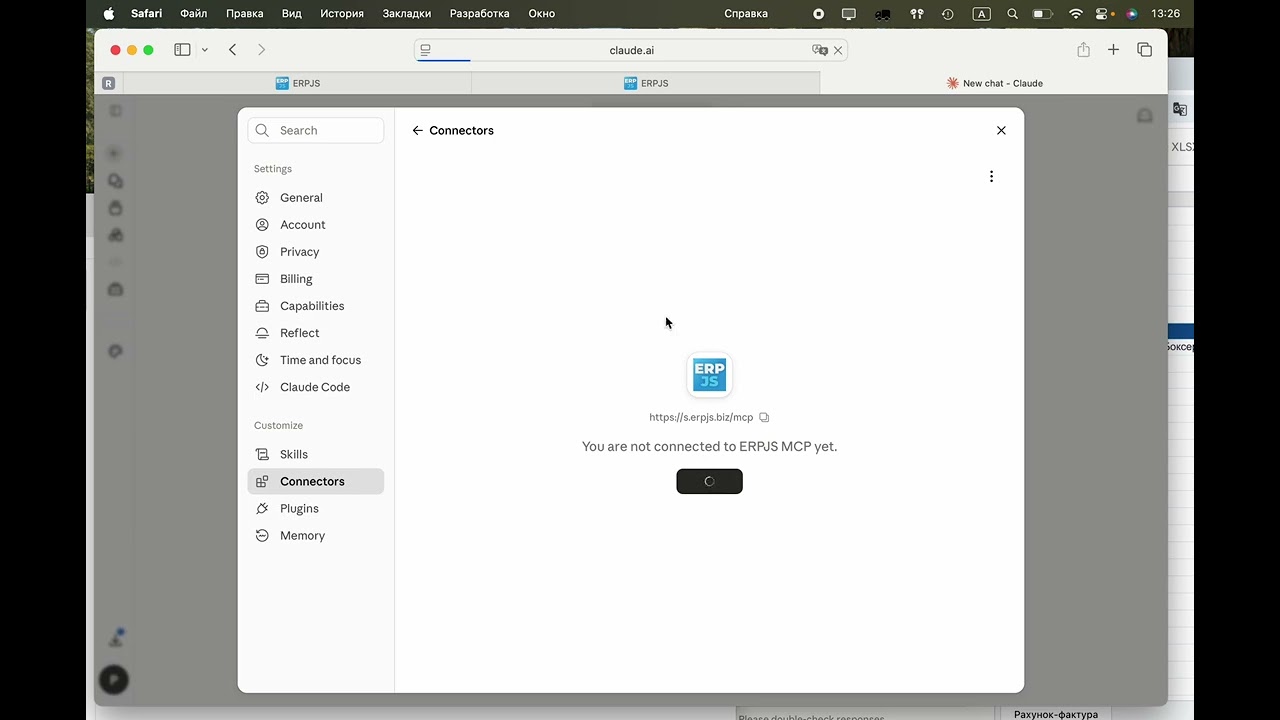
How to connect Claude — 5 steps
- In Claude, open Settings → Connectors → Add custom connector.
- Enter any name (for example, ERPJS) and the server address: https://s.erpjs.biz/mcp. Click Add.
- Click Connect — the sign-in page opens. It is in Ukrainian: the heading reads “Вхід до ERPJS” (sign in to ERPJS).
- In the “URL вашої системи” field (your system URL), paste the address you use to open your ERPJS in the browser — just copy it from the address bar.
- Enter your MCP token (the “MCP-токен” field; it is created by the “Generate MCP token” menu item in the assistant user’s card) or your login and password — and click “Дозволити доступ” (allow access). Done.
Tip: create a separate user in the system for the assistant. If the agent works under your user, the system will keep logging you out — one user cannot work in the system and in the chat at the same time.
How to connect ChatGPT
Slightly longer, but also a one-time setup: Settings → Apps → Advanced settings → Create app — name, server address https://s.erpjs.biz/mcp, and the authorization method. The new app appears in your Apps list — and ERPJS is available in your chats. Connector availability in ChatGPT depends on your plan — if something doesn’t work, contact us and we’ll help.
What the assistant can do
Documents from a phrase
Invoices, product and customer cards, tech cards (BOMs), purchase orders — created from a single chat message.
Answers about your business
Receivables, stock levels, cash balances, product movement — the assistant reads your books and answers in plain language.
Excel in and out
Attach a file with products — the assistant turns it into a purchase order. Ask for an invoice in Excel — it exports a ready file for your customer.
Example phrases to start with:
- “Create an invoice: customer Kvitka, boxing helmet, 3 pcs — and export it to Excel”
- “Show the receivables of customer Concord”
- “Create a product card: yeast, stock item, unit of measure — gram”
- “Create a tech card for cherry dumplings: flour 3 kg, yeast 100 g, salt 15 g, water 100 ml”
- “How much cash came in this week?”
As much control as you need: documents from the chat can enter the system as drafts with the “unposted” status. While you’re getting to know the assistant — review every document; once you trust it — post right away.
Real client stories
- Accounting in your usual ChatGPT or Claude: an invoice with one phrase — what it looks like from the inside.
- An AI agent created 3 documents from a single message — write operations via MCP.
- An AI agent spotted a sales anomaly in 5 seconds — analytics without reports and filters.
- An online store owner connected the website to the ERP on their own — with no developer at all.
FAQ
How much does it cost?
ERPJS has a free plan with no time limit — MCP is available out of the box. In Claude, custom connectors work even on the free plan. In ChatGPT, capabilities depend on your plan.
Is it safe to give a chat access to my books?
The agent works with the permissions of the user it’s connected under: an accountant’s agent sees accounting, a sales manager’s agent sees sales. You can revoke access at any time: in the assistant user’s card, click “Generate MCP token” again — the previous token stops working — and “Force logout” cuts an already open connection at once. If the assistant signed in with a login and password, change the password.
What if the assistant makes a mistake in a document?
Nothing irreversible: documents can enter the system as “unposted”, so a fix takes seconds. Whether to review every document or post immediately is up to you.
Why do I get logged out while the agent works?
One user cannot work in the system and via MCP at the same time. Create a separate user for the assistant — and work in parallel.
Where do I get the system URL and the token?
The connection address is the same for everyone: https://s.erpjs.biz/mcp. “URL вашої системи” (your system URL) is the address from your browser’s address bar where you open your ERPJS. The MCP token is created by the “Generate MCP token” menu item in the assistant user’s card (Modules → System → Registers → Users); this needs the right to edit users. The token is shown only once, so copy it right away. Signing in with login and password also works.
I don’t have ERPJS yet. Where do I start?
Sign up for the free plan — it has no time limit. After registration, connect the assistant using the guide above and start with a simple phrase like “show me the stock levels”.
Blog articles
- How to run a stock count: step by step, with the traps
- A working day in an accounting system: what you actually have to do
- A customer order: from the phone call to the shipment
- Free accounting software: what is actually free, and what you end up paying for
- An invoice for a client — in one sentence, without opening the app
- How a Store Owner Connected His Site to His Accounting System Without a Single Developer
- Sales Price: Calculate It From Cost, Don't Guess
- Fiscal Receipts Without a Separate Cash Register